 LandOffer
Job search
Workday Job Applications: A Checklist for Accounts, Imported Details, and Submission
Check the employer’s Workday account, imported resume fields and final submission details. A worked example shows how to repair dates and titles before reviewing the complete application.

A Workday job application should be reviewed within the employer's own recruiting process: confirm the correct account, inspect imported details, check the required documents, and preserve evidence of submission. The shared platform name does not establish a universal candidate account or an identical sequence of screens across employers.
LandOffer publishes this guide and offers job-search tools. You can browse recently posted roles on LandOffer.ai, then follow the employer's application link and current instructions. This guide uses public employer documentation checked on October 8, 2026, plus a completed fictional review. No account was created, authenticated application was navigated, document was uploaded, or application was submitted for this article.
Start at the employer's current careers page
Before entering an email address or opening a saved application, establish which employer and role you are applying to. A familiar Workday logo is useful context, but it is insufficient evidence that a bookmark belongs to the current hiring process. Follow the employer's own careers page to the posting and check the role title, location, and requisition identifier where supplied.
An employer can change recruiting systems, replace a posting, or maintain separate routes for internal and external applicants. An old help PDF can remain available after those routes change. Use the current careers link and help page together; if they disagree, resolve the discrepancy through the employer's published support route before entering information.
The distinction matters when you already work for the organization. An internal employee route may differ from an external candidate route. Choose according to the employer's instructions and your actual relationship with it. Do not invent an employee identity to access a route that appears shorter.
Keep the employer, posting, and account route attached to the same application note. In practical terms, the application should remain attached to one identifiable employer, posting, and candidate route. That context lets you interpret later account messages and confirmation records without guessing which application they concern.
Read employer instructions as an example, not a universal script
WashU's External Applicant FAQ provides a specific documented example. Its external instructions describe a Candidate Home account and email verification. The FAQ names resume autofill, manual entry, reuse of a previous application, and LinkedIn as starting choices, then tells applicants to review imported information. It identifies an experience area for additional documents and a final review before submission.
The same FAQ describes confirmation by email and application information in Candidate Home. It also limits edits after submission, with contact information treated differently from the rest of the application. These are WashU's public instructions. We read the help page; we did not enter its authenticated screens or confirm the behavior by submitting an application.
Cornell's application instructions provide another employer example, including document-based population of information and confirmation guidance. Cornell's stated timing belongs to Cornell's process. It does not establish when every Workday employer sends a receipt.
For your application, read the help associated with the current employer. If a described option is absent, do not assume a hidden step must exist. The visible process, current employer instructions, and any official support response should determine your next action.
A completed account and posting decision map
Consider Cora Ellery, a fictional applicant reviewing roles at the invented Wrenmere Labs and Alder Quay Research. The following original teaching case assumes two employer links, separate candidate records, and a local note of role identifiers. It is not a report of either employer's system or a test of a real Workday account.
Cora initially labels both saved links “Workday jobs.” That label conceals which account belongs to which employer. Cora replaces it with the completed map below. The email is represented as “personal job-search email,” not published as a contact address; passwords and verification codes are never part of this note.
| Item | Wrenmere Labs decision | Alder Quay Research decision |
|---|---|---|
| Source of posting | Current employer careers page | Current employer careers page |
| Candidate route | External applicant route named by that employer | Separate external route named by that employer |
| Account record | Employer-specific account note | Separate employer-specific account note |
| Posting identity | Operations analyst; fictional requisition WL-42 | Research coordinator; fictional requisition AQ-17 |
| Existing application | Draft associated with WL-42 | No draft assumed in this example |
| Next action | Reopen the identified draft and review imports | Read this employer's account instructions first |
The assumed identifiers are invented tracking labels. Their purpose is to keep two applications distinguishable, not to suggest a required identifier format. The map is complete because it resolves which draft Cora should reopen and which process still needs its own account instructions.
Cora does not test whether credentials from one employer work at the other. The platform name provides no reason to make that assumption. If an employer offers a particular sign-in or recovery option, Cora follows that employer's current directions rather than repeatedly creating accounts.
For your own note, retain enough context to find the correct posting and application again. Use a password manager for credentials and keep application tracking separate from secret information. An application ledger should help you recover context; it should not expose authentication details.
Choose the starting route deliberately
Resume import can reduce typing, but the resulting fields still require review. Manual entry can make an unusual career history easier to control, while requiring more input. Reusing a previous application may preserve information that has changed. The relevant question is which available route gives you an accurate application with a manageable review burden.
Use the available route that matches your document and the employer's instructions. A resume with clear dates and separate education entries may import differently from a layout with sidebars or multiple date columns. This article does not claim that any layout will parse correctly on every employer's configuration.
Keep the resume you intend to submit identifiable. A descriptive local filename can distinguish the current role-specific version from an older general resume. Before selecting a file, open it and inspect its actual contents. A filename containing “final” is not proof that the dates, contact information, and role emphasis are current.
Replacing a document and correcting structured fields are separate review tasks, so inspect both before treating an import error as resolved. Do not assume one change automatically repairs the other. Check the attachment and the visible fields after either action. If you cannot inspect a required item, the review is still unfinished.
A completed imported-field repair
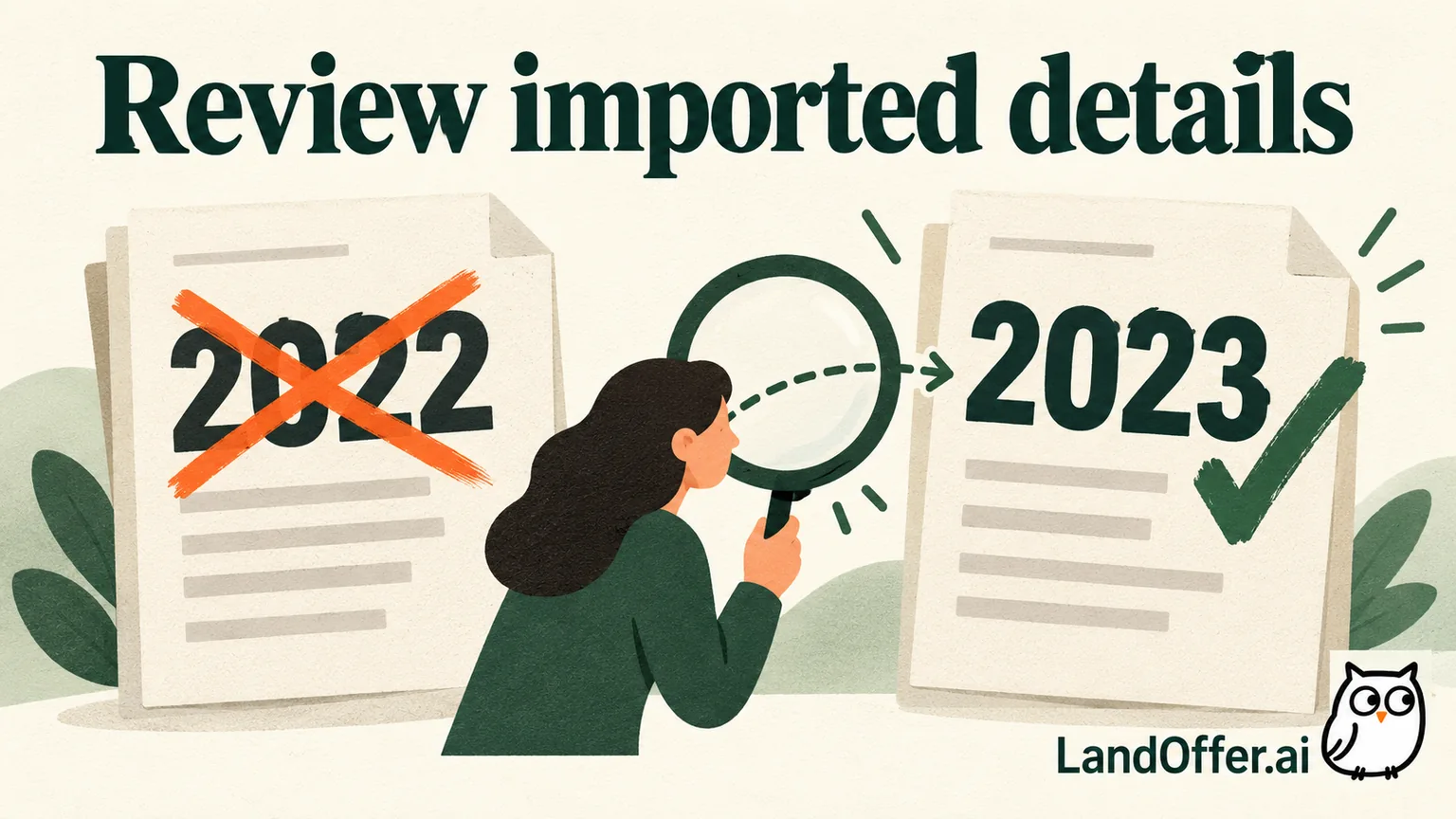
In Cora's fictional Wrenmere draft, the assumed source resume shows an operations role ending in 2023, followed by a separately labeled short course. The simulated imported fields instead show 2022 as the end year and place the course in a degree entry. These errors are assumptions in the teaching case; they were not observed in a real parser.
The imported details need correction because they contradict Cora's assumed source records. Cora compares the form against the source record rather than treating the imported version as authoritative. The completed repair is recorded below.
| Review item | Assumed imported state | Verified fictional source | Completed correction |
|---|---|---|---|
| Previous employment end | 2022 | Employment record and resume both say 2023 | End year changed to 2023 |
| Current employment flag | Not selected | Role has ended | Left unselected; no “present” claim added |
| Education type | Short course represented as a degree | Course completion record, with no degree awarded | Degree entry removed; course placed only where appropriate |
| Resume attachment | Earlier general version | Current role-specific document | Intended version identified for final review |
| Contact channel | Current | Cora's own current contact record | Retained after comparison |
The correction matters because the end date and education category communicate different facts about Cora's history. It is not a cosmetic rewrite. An imported course should not become a qualification Cora never earned, and a completed role should not become current employment for convenience.
The completed fictional record supports the listed corrections; it does not establish real submission or overall platform reliability. The stronger conclusion is narrower: the named discrepancies have been resolved within the fictional review. Other required questions, document checks, and the employer's final review still need their own confirmation.
Review documents, questions, and declarations together
Read each required field in the context of the specific posting. A resume, cover letter, supporting document, or portfolio can serve different purposes. If the employer names a destination for a document, use that destination. An attachment somewhere in the application is not necessarily an answer to a required upload elsewhere.
Check both the file selection and the content. Does the resume open? Is the intended version attached? Does a requested supporting document contain the material the employer asked for? Avoid including unrelated personal records simply because another upload slot is available.
Answer eligibility, availability, and authorization questions from your actual circumstances. The platform's wording can be specific to the employer or jurisdiction. Neither an autofill suggestion nor a general article can decide the correct response for you. If a question is unclear, seek clarification through the employer's official route before making a declaration.
An assistant can help organize a document review, but you still need to inspect what is present in the application. Tools can retain an old profile, choose an outdated file, or miss a question that appears only after an earlier answer. Keep the candidate's factual record as the reference throughout the review.
LandOffer publishes this guide, so it has an interest in application tools. Its privacy page describes an extension workflow with user submission and a separate opt-in cloud agent workflow that can submit applications. Those are public product descriptions, not evidence that either workflow was tested on this employer's form. Understand which workflow you have enabled before relying on a manual submission boundary.
Separate final review from submission evidence
Recheck the employer and requisition first, then the dates, course category, required answers, and selected files. On the final review, confirm the posting identity, required answers, factual dates, education categories, selected documents, and any declarations. Return to the relevant section when a discrepancy appears, then inspect the affected summary again.
A review page means you are reviewing. A saved draft means work may be retained. Neither state alone establishes submission. Follow the employer's current instructions and inspect the resulting confirmation rather than interpreting a generic saved message as a completed application.
Cora's completed fictional ledger ends with “reviewed draft; candidate submission not performed.” The corrected year, course classification, and intended resume are listed as reviewed. There is no invented confirmation email, submission timestamp, or employer status. This distinction makes the ledger useful: it describes exactly what has been completed and what remains.
After a real submission, retain the confirmation information that the employer actually supplies, together with the posting identity and date. Check the appropriate inbox and candidate area according to that employer's instructions. If the expected record is missing, use its published troubleshooting route; do not immediately submit duplicates or assume every employer has the same delay.
Know the employer's options after submission
Post-submission control deserves a separate check. Some information may remain editable while other answers or documents may not. The existence of a candidate profile does not prove that editing it updates an already submitted application. Read the employer's current instructions for the specific action you need.
Do not treat withdrawal as a harmless reset button. A withdrawal can affect whether the same posting can be used again, and employer instructions may impose limits. Resolve the available correction route before taking an action intended to undo a submission.
You can proceed once the required review items are resolved and you understand the employer's final action. A more useful stopping point is a clear record: correct employer and posting, reviewed fields and documents, and an accurate distinction between draft and submitted. If a required fact remains uncertain, resolve it before the final action.
To use this process, find a recent role on LandOffer.ai, open the employer's current application instructions, and record that employer's account route, posting identity, and document-review result in a small note. Check imported facts against your own records, then preserve the confirmation the employer actually provides after you choose to submit.
Sources and Further Reading
- WashU HR: External Applicant FAQ — employer-specific account, import, review, and submission instructions.
- Cornell Careers: How to Apply — another employer's application and confirmation guidance.
- LandOffer.ai Privacy Policy — public descriptions of extension and opt-in cloud-agent workflows.