 LandOffer
Job search
How to Manage Multiple Resume Versions Without Sending the Wrong File
Use distinct states and freeze the exact export selected for a role; a mutable default is not a submission record.
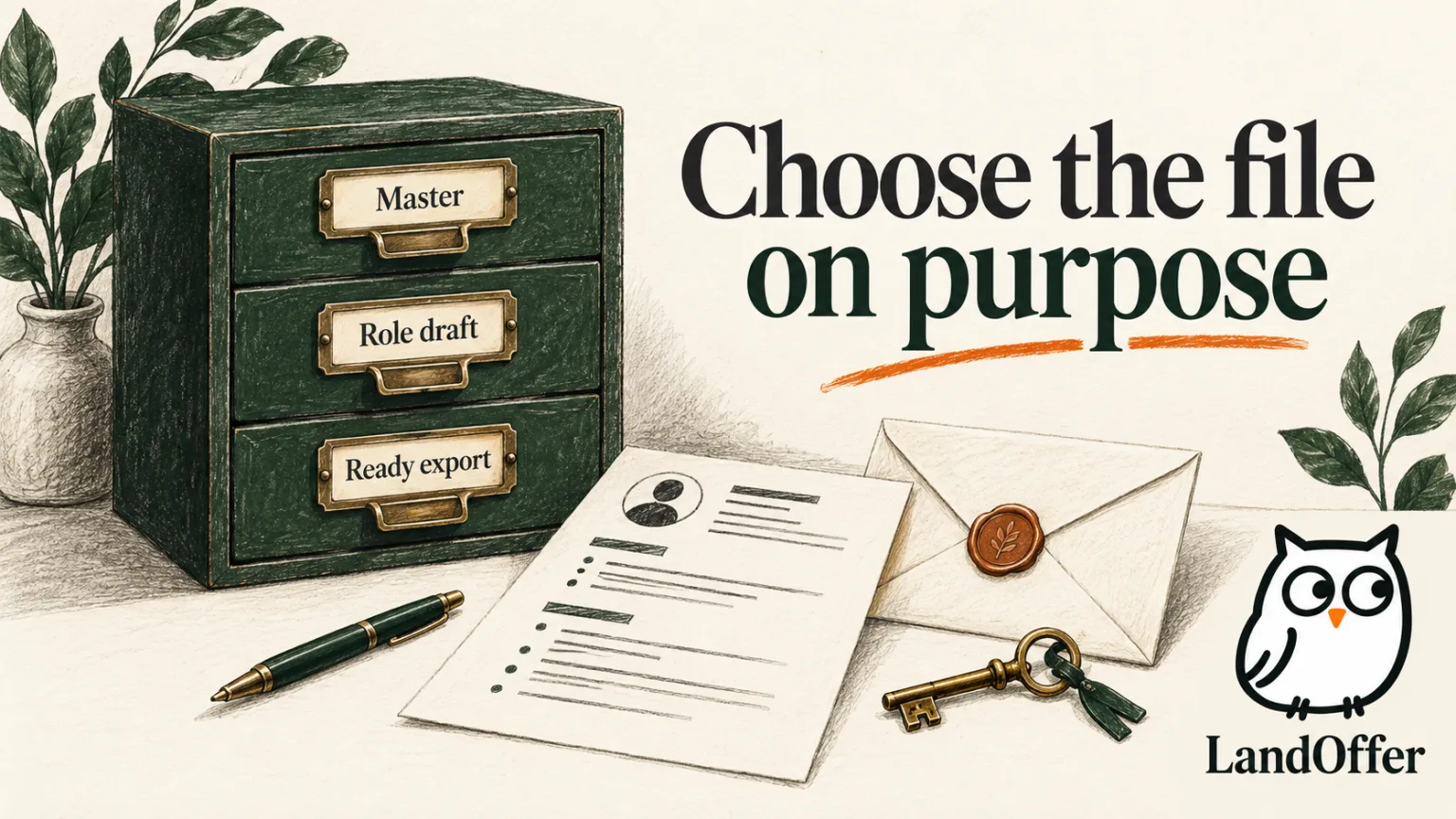
Manage resume versions by separating your factual master, role-specific working drafts, ready-to-send exports, and the exact files used for submitted applications. Name each role version clearly, freeze an export after review, and verify the attachment on the employer's form. A “default resume” or “latest file” can change; it is not reliable evidence of what you sent earlier.
Choose a real role before creating another version, perhaps from recent jobs on LandOffer. LandOffer publishes this guide. File-service and resume-tool documentation was checked on October 8, 2026. Sam, the employers, requisitions, filenames, and application records below are fictional examples. They demonstrate file handling; no account or real application was operated.
Give each file a clear purpose
The master is a working record of verified experience, not a document you automatically send everywhere. Keep accurate titles, employers, dates, projects, and useful evidence notes there. A role draft selects and emphasizes those facts for a particular job. It should inherit the same factual record while allowing its order and wording to differ.
A ready export is the reviewed file you intend to attach. It might be a PDF or another format the employer accepts. It deserves a separate place because changing the source document does not necessarily regenerate the export. An archived submission copy records the exact export selected for one application, even when the source later changes.
These are workflow states, not four different versions of your career history. If an employment date is wrong, correct the factual source and every still-active draft that uses it. Preserve an earlier submitted copy as a record of what was sent; do not silently rewrite the archive to make it match today's master.
Keep only the file states you use. A master, a few active role drafts, a ready folder, and a submission archive can be enough. You do not need a separate resume for every minor difference between two descriptions. Create a distinct version when the job's responsibilities warrant a meaningful change in selection or emphasis.
Use filenames that identify the role and revision
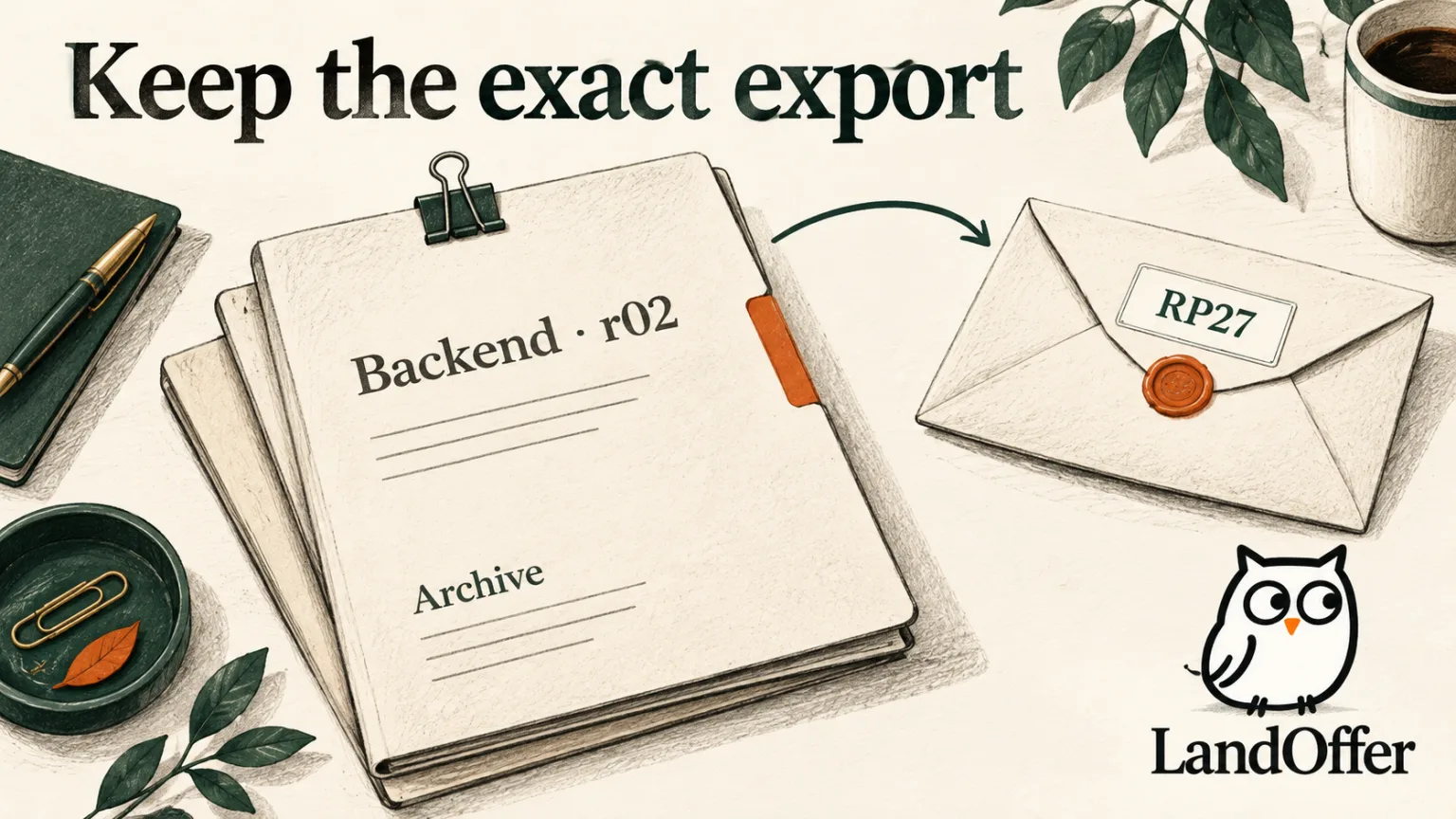
“Resume_final_final2.pdf” identifies neither the destination nor the contents. A useful internal name can include your name, the role family or employer, a requisition reference, and a revision. For example, Sam_Backend_RP27_r02.pdf says more than a timestamp alone. Use a consistent order so you can recognize files without opening every one.
Include an employer or requisition when that distinction prevents confusion. Use a role family when the same reviewed document genuinely fits several roles. The name is a selection aid; it does not prove the PDF contains the expected text. You still need to open it and inspect the actual attachment.
An internal working filename can be more detailed than the file you send. If an employer specifies a naming convention, follow it. If you need a simpler outward name, create that copy from the approved export and record its relationship to the internal revision. Do not rename an unreviewed draft and assume it became the right document.
Avoid putting unnecessary private notes in filenames. “Rejected,” a salary preference, or a critique of the employer can become visible after upload. Prefer neutral identity information. Also check that the export has no editing comments, tracked changes, or page content you intended to keep only in the master.
Work through two active applications
Sam is considering a backend role at fictional Redwood, requisition RP27, and an infrastructure role at fictional Ironfield, requisition IF12. Both draw from the same employment history. Redwood emphasizes API validation and database work; Ironfield emphasizes deployment and monitoring. Sam has evidence for all of those contributions, but each role needs different emphasis.
He prepares the following files:
| Artifact | Purpose | Current decision |
|---|---|---|
Sam_Master_2026-10-08.docx |
Verified experience and project inventory | Source for both drafts; not selected for upload |
Sam_Backend_RP27_r02.docx |
Backend working draft | Reviewed and ready to export |
Sam_Backend_RP27_r02.pdf |
Redwood export | Select for RP27 after opening it |
Sam_Infrastructure_IF12_r01.docx |
Infrastructure working draft | Still needs an evidence check |
Sam_Backend_RP27_r01.pdf |
Superseded backend export | Move out of the ready folder |
This is a completed selection decision: RP27 uses the reviewed r02 PDF. IF12 remains a draft; having a document with that employer's name does not make it ready. Sam keeps the two source drafts separate so finishing the infrastructure resume cannot overwrite the backend export.
Before attaching r02, Sam opens it and checks that the API and database bullets lead the relevant section. He also checks the date correction made during review, page breaks, visible links, and the absence of an Ironfield-specific summary. The filename identifies the intended file; opening it confirms the revision and role-specific content.
Export once, inspect it, then freeze the selected copy
Create the export only after reviewing the role draft. Then inspect the exported file rather than assuming it looks like the editor. Harvard's resume guide specifically advises checking how formatting translates to PDF. Look for clipped text, moved headings, unexpected blank pages, and broken contact details.
Confirm that the text remains readable and selectable where the format supports it. A visually attractive export can still contain an unusual reading order. Copying a small relevant section into plain text is a useful diagnostic, although it does not prove that every employer's parser will map the fields correctly.
Keep the reviewed export unchanged while using it for that application. If you discover a factual mistake before submission, make a new revision, regenerate the export, and repeat the checks. Do not leave two different files with the same internal identity. A changed file should have an identifiable new revision even when its outward filename stays simple.
After Sam selects RP27 r02, he copies that PDF into the RP27 archive folder. His record names the file and the application destination. If a later infrastructure edit changes the master or another default document, the archived backend file remains available. Sam can inspect the earlier wording without attempting to reconstruct it from memory.
Check the employer's actual attachment
The file picker is only one step. After upload, check the employer form's attachment name, preview, or download link when available. Verify that the selected resume appears in the resume field rather than a cover-letter or portfolio field. If the form keeps an older attachment, remove or replace it through the controls the page provides.
Some forms show only a name or upload confirmation. Record the strongest evidence actually visible, without claiming you inspected a remote preview that does not exist. Keep the local selected file and note the limitation. A completed file upload also does not, by itself, establish that the full application has been submitted.
In Sam's fictional RP27 example, the form initially displays r01 from an earlier saved session. He replaces it with r02 and opens the available preview. The API bullet and corrected date match his reviewed export. He completes the remaining form and later records the employer's confirmation separately from the attachment check.
If the page refreshes, returns to a previous step, or autofills again, recheck the attachment. A correct selection earlier in the session is not enough if the visible file changes. Close unrelated draft tabs when they make it difficult to tell which application and document are active.
Understand what a resume tool treats as current
Resume products manage versions differently. Simplify's Documents guidance describes multiple named versions, but also says shared experience titles, dates, and company names live in the profile and can flow into resumes built from it. A working document may therefore change after a shared factual correction.
MyGreenhouse's candidate FAQ describes a different boundary: multiple resumes are not supported, and the most recently uploaded resume is the default. It also notes that an earlier submitted resume may not be visible there. Treat the current profile file as a reusable default, not as an archive of every application.
If you use either kind of system, check which document the current form will receive. A version you edited in one product may not be the default selected by its extension. A new upload in a portal may replace the resume you intended to use for another role. Your local export record makes that mismatch easier to detect.
Do not assume a profile update repairs a previous submission. MyGreenhouse explicitly limits name and phone updates to future applications and directs candidates to the employer for earlier corrections. Keep correction requests as separate records. The fact that you uploaded a better resume today does not establish that yesterday's employer received it.
Use cloud history as recovery, not submission evidence
Cloud version history can recover editing work, but its rules vary by file type and account. Google Drive's documentation distinguishes native Docs history from versions of PDFs and other files. It says an older file version may be deleted after 30 days or 100 newer versions unless kept forever.
OneDrive's version-history guidance describes restoring older files and notes retention and administrator restrictions. Check the service and account you actually use. Do not rely on an assumed unlimited history when deciding whether to preserve a selected export separately.
A cloud history entry records a file revision. Without an application record, it does not establish which employer received that revision. Pair the file with an application record. For Sam, the relevant entry includes RP27, the employer posting URL, the selected export identity, attachment-check evidence, submission time if confirmed, and where the confirmation was saved.
Store those records with appropriate access for your personal documents. You do not need to upload the resume to a public sharing link to preserve it. If you keep a shared folder for feedback, keep its working drafts distinct from your submission archive and inspect permissions before adding private notes.
Maintain active versions without rewriting the archive
Review the active queue when a factual correction occurs. A new end date, changed phone number, or corrected credential can affect several drafts. Update the master first, identify affected active files, regenerate exports where needed, and inspect them again. Mark older ready exports as superseded so they cannot be selected accidentally.
Keep closed applications out of the working queue while retaining their selected files and receipts. If a recruiter later asks about a resume, you can identify the version associated with that role. A new export belongs to a new action or correction record; it should not silently replace the evidence of an earlier submission.
If you realize you sent the wrong file, first check the employer's available correction process. You may be able to update a draft or contact a recruiter, but an upload to a general profile might not alter the submitted application. Do not automatically create a duplicate application just to force a different attachment.
Sam's system ends with one verified RP27 export, an intact archive copy, and an IF12 draft still awaiting review. It provides a clear next action without multiplying “final” files. Apply the same sequence to one role from LandOffer's recent jobs: identify the draft, inspect its export, verify the attachment, and preserve the selected file with the application record.
Sources and Further Reading
- Google Drive: Check activity and file versions: file-type distinctions, retention and kept versions.
- Microsoft: Restore a previous OneDrive version: recovery and account limitations.
- Simplify: Managing your Documents: named working versions and shared profile facts.
- MyGreenhouse: Candidate FAQ: latest-file default and earlier-application boundaries.
- Harvard MCS: Guide to Creating a Strong Resume: exported-format review.