 LandOffer
Job search
Job Application Autofill: What to Automate and What to Review Yourself
Autofill is a reuse mechanism; the exact field meaning, active settings and submit permission determine what can be delegated.
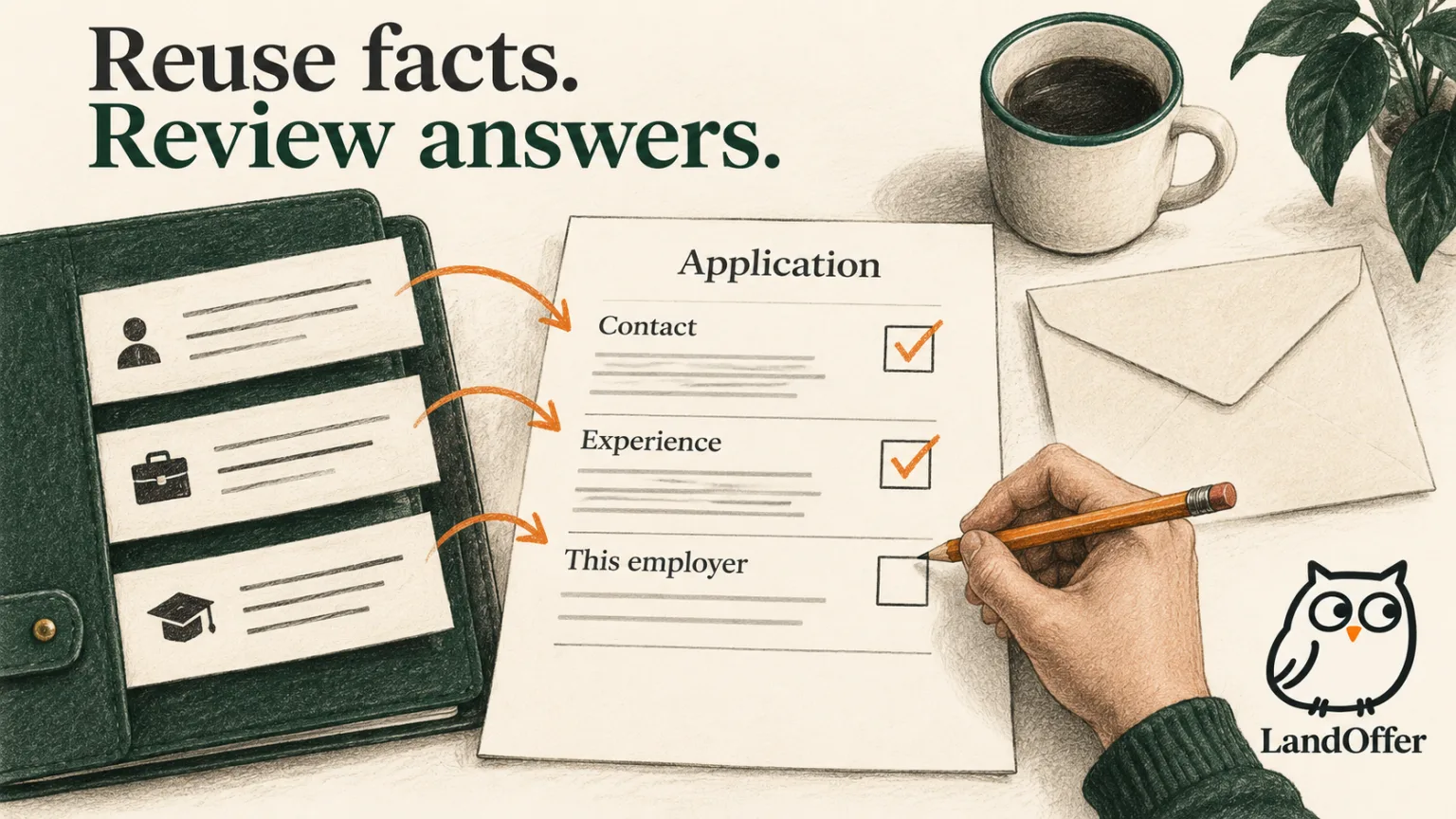
Use job application autofill to reuse accurate profile facts, then review what those facts mean on the employer's actual form. Check the selected resume, dates, links, required choices, and company-specific answers. Before starting, identify whether the active feature only fills fields or can also advance and submit. An application that looks complete still needs an accuracy review and separate submission evidence.
Choose one role you intend to review, perhaps from recent jobs on LandOffer. LandOffer publishes this guide. The product descriptions below come from official documentation checked on October 8, 2026. Erin and the application examples are fictional; we did not install an extension, test a signed-in application, or submit anything.
Identify the action before deciding what to automate
“Autofill” can describe several behaviors: copying contact details, attaching a resume, generating a written answer, moving through pages, or participating in a workflow that submits the form. Check the active settings rather than relying on the button label. Read the feature documentation and inspect the settings for the version and account you actually use.
Simplify's Copilot walkthrough describes filling supported pages, reviewing them, and submitting yourself. Its separate Autopilot documentation describes completing and submitting chosen applications without a pre-submit review. Those are materially different actions even when they draw on the same profile.
There is also a documentation boundary worth checking. Simplify's autofill settings page describes continuous multipage filling as continuing until the application is submitted. That wording does not establish a dependable manual stopping point. If personal review before submission is essential, disable that behavior and resolve the active workflow's control boundary before using it.
LandOffer's privacy description likewise separates an extension that fills but never submits from opt-in cloud AI Agent Apply, which can submit without asking again. These are public product descriptions, not findings from this guide's testing. Inspect the actual feature you enable; do not transfer one feature's submission controls to another.
Separate stable facts from questions that need a fresh decision
A profile is a useful source for repeated facts: your current contact details, employment history, education, and portfolio links. These still need occasional maintenance. An old phone number or an internship incorrectly marked current can spread across forms more efficiently when it is saved in a reusable profile.
Other fields depend on the employer's question and your current circumstances. A location preference may differ from your address. A question about current authorization may differ from one about future sponsorship. Availability, relocation, salary, and self-identification choices should be reviewed in their actual context rather than inferred from an unrelated stored answer.
Use a field map to decide the review effort:
| Field type | Reasonable reuse | What to inspect on this form |
|---|---|---|
| Name, email, phone | Current profile facts | Correct person and reachable contact route |
| Employment and education | Verified dates, titles, institutions | Grouping, current-status boxes and missing entries |
| Resume and portfolio | Selected reviewed files and links | Correct version, field placement and access |
| Eligibility, location and availability | Candidate-confirmed information | Exact wording, choices and present circumstances |
| Company-specific essay | A draft or evidence notes | Employer identity, question coverage and every claim |
| Submission and consent | An explicitly chosen action | What will be sent and what the control authorizes |
This map does not assign an answer to a personal eligibility question. It identifies where reuse is straightforward and where the candidate must supply or confirm the meaning. A tool's confidence is not a substitute for knowing whether the answer accurately represents you.
Clean the profile before filling another application
Check the reusable profile against your own source records before it touches a new form. Confirm the contact route you monitor, the end dates of completed roles, the expected or completed status of degrees, and the links you intend to share. Check the default resume separately from the structured profile; they may be updated through different controls.
Erin, a fictional candidate, completed an internship in August 2026. Her saved profile still marks it current, and the extension's default resume is a frontend version. She is about to review a backend application. Correcting only the visible employer form would leave both reusable sources ready to repeat the mismatch on the next role.
She updates the internship end date in the profile, selects a reviewed backend resume, and verifies its actual contents. She does not change the historical internship title to “Backend Engineer.” The target role changes which experience she emphasizes, not what position she held. She also checks that her repository link opens without access intended only for herself.
Treat the profile as a source, not a guarantee. A form can interpret a field differently or require information that the profile does not contain. Even a carefully maintained source can be mapped into the wrong field. The next review therefore compares the employer page with the source rather than merely checking that the profile looks correct.
Review the filled form in a deliberate order
Start with identity and attachments. A correct essay sent under the wrong email or with the wrong resume is still a mismatched application. Then inspect employment and education records, followed by employer-specific questions and the final controls. This order catches basic identity errors before spending time polishing optional wording.
Compare each employment block as a unit: employer, title, start date, end date, and current-status choice. Dates can be individually plausible while attached to the wrong role. Check education in the same way, particularly whether an expected graduation has been interpreted as a completed credential.
Read labels and help text around choice fields. A yes/no option may look familiar while asking a different question from the one you previously answered. If you do not know how to answer it accurately, pause that field and obtain the needed information. Do not let automation guess just because the field is required.
Check the attachments and any preview after editing. A later autofill action can replace something you previously corrected. On multipage forms, review each page and recheck the final summary when one exists. A count of filled fields does not tell you whether required data is correct or whether hidden conditional questions appeared.
Reused writing still needs employer-specific review
Identical questions can require different answers for different employers. Simplify's essay-answer guidance describes reusing saved responses when the wording matches exactly. That is a matching rule, not evidence that the saved answer fits the new company.
In Erin's fictional example, a new employer asks, “Why this company?” A saved response names the previous employer and a product Erin has never used. The text is grammatical, and the field is complete, but neither fact makes it appropriate. Erin removes both unsupported references before writing an answer from the current posting and her actual experience.
Reused draft:
I use Acme’s consumer app every day and want to bring my frontend experience to your mobile team.
Reviewed replacement for the fictional backend role:
Your posting emphasizes API validation and clear error handling. In my internship, I implemented request validation and tests for malformed inputs, and I would like to apply that experience to the backend responsibilities described here.
The replacement does not invent product use or knowledge of the employer's internal architecture. It answers the role motivation from available evidence. Erin still checks the full question and any length limit; if the employer asks about a specific product, this sentence may need a different supported answer.

For an AI-generated response, inspect every claim about you and the employer. Confirm the employer name, contribution scope, technologies, dates, and any result. Delete unsupported metrics rather than asking the model to make them more believable. A polished paragraph can conceal a factual change as easily as an awkward one.
Handle a mismatch without letting it recur
If a date, title, or choice is wrong, correct it on the current form and identify where the error came from. A profile problem needs a source correction. A mapping problem may require manual entry for that field. A stale saved answer needs review in the place where responses are reused. These fixes address different causes.
Avoid repeatedly clicking autofill after making manual corrections. First determine whether another fill would overwrite them. If a field keeps changing, turn off that field's automation where the product supports it or complete the form manually. Keep one active filling mechanism while diagnosing a conflict; overlapping tools make the source of a change harder to identify.
Supported-site claims do not guarantee that every employer's custom form works. Simplify's walkthrough distinguishes supported filling from manually copying profile information on unsupported pages. Use that fallback when available, or type the needed data yourself. A missing automated fill does not require an invented compatibility fix or a new submission attempt.
If the tool stalls, preserve what the page actually shows. A loading indicator, complete form, or internal “applied” flag is not always an employer receipt. Before restarting, inspect the current application state and any employer confirmation so that recovery does not create an accidental duplicate.
In a second fictional recovery step, Erin returns from the final page and sees that the internship is marked current again. She checks the saved source and finds that her profile correction had not persisted. She corrects that source, verifies it after reopening, and then fixes the employer field again. She reviews the remaining experience blocks without running another full fill over them. Her short error note records a repeated end-date problem and the source repair. The useful outcome is an accurate current form and a checked reusable source, without implying that the tool will map every future form correctly.
Review submission permission and evidence separately
Before the final action, read the page's submission and consent controls. Confirm that all required answers and files are the ones you intend to send. Do not interpret a tool's “continue” action as harmless navigation if its documented workflow can proceed to submission. If the control boundary is unclear, use a workflow with a review point you can actually observe.
After a personally chosen submission, keep the employer's confirmation when available, along with the role identity and selected file. A tool may track applications, but a tracking entry and an employer receipt answer different questions. Record a pending or uncertain state when confirmation is missing rather than treating the existence of a log as proof of receipt.
In Erin's example, the final review finds the corrected internship date, backend export, current contact route, and rewritten motivation answer. She has resolved the content issues before deciding to submit. The example stops at that decision; it does not portray a real application, a successful employer receipt, or an interview outcome.
Autofill is useful when it removes repeated entry while preserving your ability to check meaning. Its value depends on the accuracy of the source and the review burden of the form, not simply the number of fields filled. Keep a small list of recurring errors so you can decide which fields deserve manual entry next time.
Choose one relevant role from LandOffer's recent jobs, prepare its reviewed resume, and compare the actual application with your current profile before enabling a fill. Resolve employer-specific answers and the submission boundary before authorizing anything to leave the form.
Sources and Further Reading
- Simplify: Using Copilot to Autofill Applications: filling, reviewing and supported-page limits.
- Simplify: Manage Autofill Settings: field controls and continuous multipage behavior.
- Simplify: Answering Essay Questions: exact-question matching and generated drafts.
- Simplify: Getting started with Autopilot: a distinct submission permission model.
- LandOffer: Privacy: documented extension and cloud Agent Apply boundaries.